Trecs Saves Window
The Trecs Saves window is the library view for everything saved to disk: recordings (scrubbable time-range buffers) and snapshots (single-frame world states). The Player owns the active recording's transport and in-flight Save/Load entries; this window handles library management — browse, search, rename, reveal in Finder, multi-select delete, save-as-new.
To open it: Window > Trecs > Saves. Worlds appear in the dropdown once they call WorldBuilder.Build().
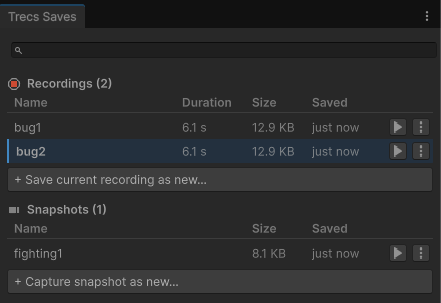
Layout
| Row | Contents |
|---|---|
| World dropdown | Selects which world a Load action targets and which world a Capture / Save action draws state from. |
| Search field | Case-insensitive substring filter across both sections. |
| Recordings section | Each row: name, duration, size (when wide enough), saved-at time, Load + ⋮ buttons. |
| Snapshots section | Each row: name, size, saved-at time, Load + ⋮ buttons. |
| + Save as new… row | Trailing row in each section that prompts for a new name. |
| Status line | Shows the result of the last action; auto-clears after a few seconds. |
The recording Size column hides when the window gets narrow — Duration is more useful for picking a recording, and size remains in the row's tooltip.
Recording rows
| Column | What it shows |
|---|---|
| Name | The saved-recording name. Bold when loaded in the Player. |
| Duration | Total simulated time. Tooltip: frame count and tick rate. |
| Size | On-disk size. Hidden when the window is narrow. |
| Saved | Relative time (e.g. 5m ago, 3d ago); tooltip shows the absolute timestamp. |
| Load | Loads this recording into the Player for the selected world. Disabled when no world is active. |
| ⋮ | Per-row menu (see Per-row menu). |
The row loaded in the Player gets a blue left accent stripe and a bold name. Selecting that row keeps the stripe; only the fill colour changes.
Snapshot rows
A snapshot is a single frame, so there's no duration:
| Column | What it shows |
|---|---|
| Name | The snapshot name. |
| Size | On-disk size. |
| Saved | Relative time. |
| Load | Stops the Player's recorder and restores world state to the snapshot's frame. If Auto-Record is on, a fresh recording starts at the loaded frame. |
| ⋮ | Per-row menu. |
Search
The search field filters both sections by case-insensitive substring match against the name. Empty query shows everything.
Selection and bulk actions
Click a row to select it. Selection state is independent of the Player's loaded-recording highlight.
| Gesture | Effect |
|---|---|
| Click | Replace selection with this row. |
Cmd/Ctrl+click |
Toggle this row in the selection. |
Shift+click |
Range-select within the same section using the visible (filtered) ordering. |
| Right-click | Open the row's per-row menu without changing the selection. |
When at least one row is selected, a selection toolbar appears above the list with the count and Delete / Clear buttons. Delete prompts for confirmation, then removes every selected file from disk.
Per-row menu
Each row's kebab (⋮) button opens a per-row menu. Right-clicking the row opens the same menu at the cursor.
| Entry | Notes |
|---|---|
| Save current recording into this slot (recordings) | Overwrites this slot with the live in-memory recording. Disabled when there's nothing to save. |
| Capture current frame into this snapshot (snapshots) | Overwrites this slot with the current frame's world state. |
| Rename… | Prompts for a new name. The on-disk file is moved. |
| Reveal in Finder | Opens the file's location in your OS file browser. |
| Delete | Confirms, then removes the file from disk. |
Save as new
The trailing + Save current recording as new… row prompts for a name and writes the live in-memory buffer to disk. + Capture snapshot as new… captures the current frame as a new snapshot. Both are disabled when no world is active or (for recordings) when the recorder has no buffer.
On-disk locations
Recordings live in Library/com.trecs/recordings/ and snapshots in Library/com.trecs/snapshots/. Both are gitignored by Unity's default .gitignore and safe to delete — Trecs regenerates caches on the next run.
Multi-world
The dropdown selects which world a Save / Capture / Load operates on. Save/Capture pulls state from that world; Load applies the file to that world's controller. List selection is independent of the world selector.
See also
- Player Window — transport, scrub, and live recording for the active world.
- Hierarchy Window — sibling editor window for inspecting world state.
- Serialization — how managed types stored on the heap need a custom
ISerializer<T>to round-trip into saved files.