Hierarchy Window
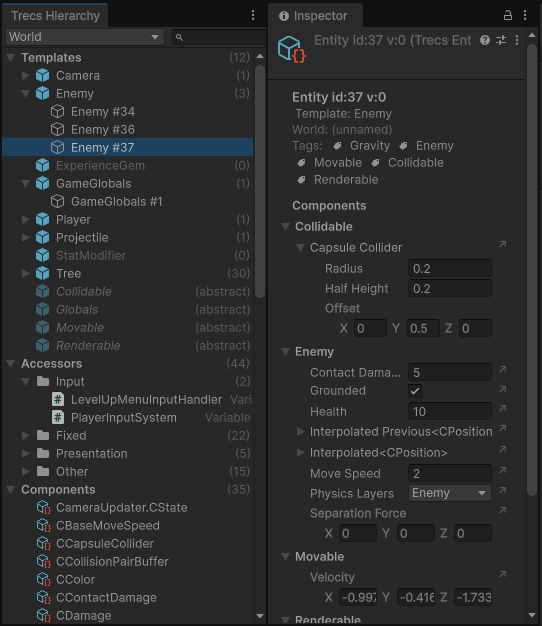
The Trecs Hierarchy window is the editor's main inspector for a running world's schema and live state. It cross-references templates, entities, components, tags, sets, and accessors in a single tree, and stays useful between Play sessions via on-disk schema snapshots.
To open it: Window > Trecs > Hierarchy
Overview
The tree splits into five top-level sections:
| Section | What it lists |
|---|---|
| Templates | Every concrete and abstract template, grouped by tag-set partition; entity rows hang under their template. |
| Accessors | Every system / manual accessor, grouped by execution phase. |
| Components | Every component type registered with the world. |
| Sets | Every EntitySet with its current tag membership. |
| Tags | Every Tag and which entities/templates carry it. |
The toolbar hosts:
- A world dropdown (multi-world projects — see below).
- A search field with the predicate DSL described in Search syntax.
- A
?button that toggles an inline help panel (mirrors this page). - The Unity-standard kebab (
⋮) menu for window options.
World dropdown
When at least one Trecs world is alive, the dropdown lists each by name. Picking one binds the tree to that world.
With no live world, the dropdown falls back to cached snapshots from Library/com.trecs/inspector_schema/. Cached entries are suffixed with (cached). Cache mode is read-only — toggles like the system-enable switch are disabled, since there's no running world to mutate.
Selecting a live world while a cached snapshot is showing switches into live mode (and vice-versa when the live world stops).
Search syntax
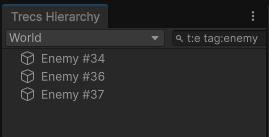
The search field accepts whitespace-separated tokens. Every token must match (logical AND) for a row to appear. Tokens come in three shapes:
Bare substrings
A bare word is a substring match against the row's display name and altname:
Smart-case: tokens with no uppercase match case-insensitively; any uppercase character flips the token to case-sensitive (ripgrep / vim / ag convention).
Quote a phrase to include spaces:
Kind selector
A single t:KIND token restricts which row kinds are visible. Only one selector is honored; later ones overwrite earlier ones.
| Token | Restricts to |
|---|---|
t:e, t:entity, t:entities |
Entity rows |
t:t, t:template, t:templates |
Template rows |
t:c, t:component, t:components |
Component rows |
t:s, t:set, t:sets |
Set rows |
t:tag, t:tags |
Tag rows |
t:a, t:accessor, t:accessors |
Accessor rows |
Predicates
Predicates are key:value tokens with a recognized key, checked against fields the row's kind exposes. A predicate that doesn't apply to a kind filters that row out, so combining predicates implicitly narrows which kinds appear.
| Predicate | Applies to | Matches when |
|---|---|---|
tag:X |
Templates, entities, sets, tags | The row's tag list contains a tag whose name contains X |
c:X (alias component:X) |
Templates, entities, components | The row has a component whose type name contains X |
base:X |
Templates | The template's base chain contains a template whose name contains X |
derived:X |
Templates | A derived template's name contains X (i.e. X extends this row) |
template:X |
Entities | The entity's template name contains X |
reads:X |
Accessors | The accessor reads a component whose name contains X |
writes:X |
Accessors | The accessor writes a component whose name contains X |
accesses:X |
Accessors | The accessor reads OR writes a component whose name contains X |
Unrecognized key:value tokens are treated as bare substrings.
Modifiers
| Modifier | Effect |
|---|---|
-tok |
Negate. Token must NOT match. Works on bare substrings and predicates. |
"a b c" |
Quoted phrase — a single substring that may contain spaces. |
Examples
player                       any row matching "player"
tag:player                   any kind tagged "player"
t:e tag:player               entities tagged "player"
t:e tag:enemy -c:Boss        enemies that don't have a Boss component
t:t c:Health                 templates with a Health component
t:e tag:enemy c:Health       entities tagged enemy AND with Health
t:a reads:Health             accessors that read Health
t:a accesses:Position        accessors that read or write Position
base:Enemy                   templates whose base chain includes Enemy
"My Long Name"               substring including spaces
Search history
Every committed search is recorded (capped at 20 entries, persisted via EditorPrefs):
- With focus in the search field, Up / Down cycle through prior queries.
- The current draft is preserved on the first Up and restored when walking back past it with Down.
- The cog menu has a Clear Search History entry.
Keyboard shortcuts
| Shortcut | Action |
|---|---|
Cmd/Ctrl+F |
Focus the search field |
Esc |
Clear the search field |
Up / Down (in search field) |
Recall recent queries |
Alt+Left / Alt+Right |
Walk back / forward through prior selections |
Shift+hover (inspector link) |
Preview-scroll to the linked row without selecting it |
Row context menu
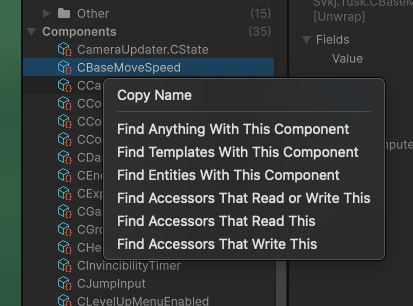
Right-clicking a row offers actions tailored to its kind:
| Row kind | Actions |
|---|---|
| Any | Copy Name |
| Template | Find Entities Of This Template · Find Templates Derived From This · Find Templates This Derives From |
| Component | Find Anything With This Component · Find Templates With This Component · Find Entities With This Component · Find Accessors That Read or Write This · Find Accessors That Read This · Find Accessors That Write This |
| Tag | Find Anything With This Tag · Find Templates With This Tag · Find Entities With This Tag · Find Sets With This Tag |
| Set | Find Sets With Same Name |
| Entity | Copy Entity Id |
| Accessor | (no extra entries — accessor cross-links live in the inspector) |
Each "Find…" entry pre-fills the search field with the right predicate and kind selector.
Kebab menu
The kebab menu (⋮) at the top-right holds:
- Show Empty Templates — toggle templates with no live entities.
- Show Abstract Templates — toggle abstract (non-instantiable) templates.
- Help… — opens the same inline help panel as the
?button. - Clear Search History — wipes the saved query list.
Both visibility toggles persist via EditorPrefs.
Inspector cross-links and hover preview
Selecting a row drives Unity's standard inspector to a Trecs-aware view of the entity / template / component / set / tag. Component fields appear as a per-entity component inspector with JSON edit support, and most inspector views include navigation links back to the hierarchy:
- Clicking a link selects the linked row and scrolls it into view.
Shift+hoveron a link previews the destination — the hierarchy scrolls but selection doesn't change, so the inspector keeps showing your current row.
Selection and link navigation persist across domain reloads and the live ↔ cache transition: rows are identified by stable string keys (e.g. template:Foo, accessor:MoveSystem), not transient object references.
Live vs cache mode
Trecs writes a schema snapshot to Library/com.trecs/inspector_schema/ whenever a world runs in the editor, so the hierarchy has something to show after Play mode ends or between domain reloads.
| Live mode | Cache mode | |
|---|---|---|
| Source | A live World instance |
Schema snapshot from Library/com.trecs/inspector_schema/ |
| Refresh cadence | Periodic refresh of counts and system-enabled state | Static — snapshot is read once |
| System-enable toggle | Active | Disabled |
| Entity counts on rows | Live counts | Hidden (cache holds no entity instances) |
The window switches automatically: a new live world takes over the dropdown; when the last live world stops, the most recent compatible snapshot loads in cache mode. The (cached) suffix is the at-a-glance indicator.
See also
- World Setup —
WorldBuilder.SetDebugNamecontrols how a world appears in the dropdown. - Pausing and Disabling Systems —
EnableChannel.Editoris the channel the hierarchy's per-system enable toggle uses. - Sibling editor windows (also under
Window > Trecs):- Trecs Player — record / playback / snapshot / scrub / fork / loop UI for the active world.
- Trecs Saves — library window for managing recordings and snapshots.