Trecs Player Window
The Trecs Player is the editor's transport for a running world: record a session, scrub back, replay forward, fork the timeline, pin labelled snapshots, and load saved recordings — all without leaving Play mode. Use it to diagnose transient bugs ("what was the state two seconds before that crash?") and to capture reproducible repro fixtures.
To open it: Window > Trecs > Player. Worlds appear in the dropdown automatically. Most settings (auto-record, anchor cadence, scrub-cache caps) are EditorPrefs-backed — tune them outside Play mode and they apply the next time a world starts.
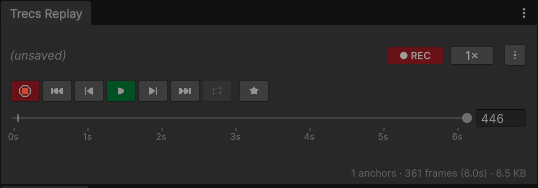
Layout
The window stacks four rows top-to-bottom:
| Row | Contents |
|---|---|
| World dropdown | One row per registered World. Hidden when only one world exists. |
| Recording header | Current recording name (or (unsaved)), state badge, speed dropdown, Actions ▾ menu. |
| Transport | Record, ⏮ ◂ ▶ ▸ ⏭, Loop, Snapshot (★). |
| Timeline | Slider with adaptive time ruler and per-anchor / per-snapshot markers. |
A capacity banner appears under the slider when the recorder is paused against its memory cap — see Settings.
State badge
| Badge | Meaning |
|---|---|
| LIVE | Not recording. The world is running but no buffer is captured (Record not pressed, or Auto-Record is off). |
| REC | Recording at the live edge of the buffer. |
| PLAY | Scrubbed back from the live edge, or playing a recording loaded from disk. Live input systems are silenced; captured input drives the world, so playback is verbatim. |
| ⏸ suffix | Paused. The play button turns green to mirror the state. |
REC switches to PLAY when you scrub back or load a saved recording. To return from PLAY to REC, press Record to fork (see below).
Transport row
| Button | Shortcut | Behaviour |
|---|---|---|
| ● Record | R |
Context-sensitive. LIVE → start capturing. REC → stop and discard the buffer. PLAY → fork at the current scrub frame: commit snapshots up to here as the new live edge, drop everything after, and resume capture. |
| ⏮ ◂ ▶ ▸ ⏭ | Home ← Space → End |
Standard transport. ◂/▸ step one frame; ⏮/⏭ jump to buffer start / live edge. Shift+←/→ jump to the previous / next anchor. |
| ↻ Loop | L |
PLAY only. Rewinds to the first frame at the end of the recording instead of pausing. Session-local, not an EditorPref. |
| ★ Snapshot | B |
REC only. Prompts for a label and pins a snapshot at the current frame. Snapshots appear as bright timeline markers. Click to jump; right-click to remove. Saved with the recording. |
The play button turns green when paused, so a quiet world is visibly distinct from an idle one.
Timeline
The slider commits a JumpToFrame on pointer release; while dragging, a throttled commit fires at most every few hundred milliseconds, so the world keeps stepping continuously without per-frame resim cost. The hover indicator shows the frame number and signed time offset from the live edge.
Two marker kinds ride above the slider:
- Anchors — faint ticks at the recorder's anchor cadence. Recovery points: scrubs and desync recoveries land on the nearest one. Tuned to be unobtrusive even in long recordings.
- Snapshots — taller, brighter pins at frames labelled with the ★ button. Tooltip shows the label. Left-click jumps; right-click removes.
Speed dropdown
The speed button cycles through presets (0.1×, 0.25×, 0.5×, 1×, 2×, 4×, 8×). It tints amber when the multiplier isn't 1× so non-real-time sessions are visually obvious.
Recording vs snapshot
Two concepts share the timeline:
| Concept | What it captures | When useful |
|---|---|---|
| Recording | A scrubbable time-range buffer. Live input is captured alongside world state, so replay is verbatim. | "Wind back five seconds and watch the bug again." |
| Snapshot | A single-frame world state — no input history, no buffer. | "Save this exact state as a QA repro fixture / 'revert here later' pin." Loading a snapshot stops the current recording and (if Auto-Record is on) starts a fresh one from the snapshot's frame. |
Actions ▾ menu
The ▾ button opens a menu with everything that doesn't fit on the transport row. Entries grey out when they don't apply (e.g. Save Recording is disabled until there's a buffer to save).
| Group | Entry | Notes |
|---|---|---|
| Recording | New Recording | Resets the in-memory buffer. Disabled while not recording. |
| Save Recording | Overwrites the current name. Disabled until the buffer has content. | |
| Save Recording As… | Prompts for a new name. | |
| Load Recording / … | Cascade of saved recordings. Loading switches the badge to PLAY. | |
| Delete Recording 'name' | Deletes the on-disk file backing the loaded recording. | |
| Snapshot | Save Snapshot… | Prompts for a name; captures the current frame. |
| Load Snapshot / … | Cascade of saved snapshots. Stops the recorder; restores world state to the snapshot's frame. | |
| Playback only | Trim / Before current frame | Drop all snapshots before the scrub frame. |
| Trim / After current frame | Drop all snapshots after the scrub frame. The on-disk file is untouched. | |
| Misc | Settings… | Opens the modal Settings popup. |
| Help… | Opens an inline help popup with shortcuts and concept primer. |
The full library — rename, multi-select, reveal-in-Finder — lives in the Saves window.
Settings
Actions ▾ → Settings… opens a modal popup with the recorder's tuning knobs. Values persist via EditorPrefs and are reachable outside Play mode.
| Field | What it controls |
|---|---|
| Auto-Record | Whether the recorder starts capturing the moment a Trecs world appears in Play mode (the Player window must be open). Off → press Record to capture on demand. |
| Anchor interval (s) | Simulated seconds between persisted-anchor captures. Anchors survive Save/Load and bound how far back a desync recovery or cold scrub can jump. Larger = smaller files; smaller = faster recovery. |
| Scrub-cache interval (s) | Simulated seconds between transient (in-memory only) scrub-cache captures. Smaller = snappier scrubbing of recent frames. |
| Max anchor count | 0 = unbounded. Drop-oldest when the cap is hit. |
| Max scrub-cache (MB) | 0 = unbounded. Drop-oldest when the cap is hit. The capacity banner under the slider appears when the recorder pauses against this cap. |
Save writes the values to EditorPrefs and pushes them onto every currently-running recorder, not just the next play-mode entry. Reset to defaults refills the form with the POCO defaults — Cancel still backs out without committing.
Keyboard shortcuts
When the window has focus:
| Shortcut | Action |
|---|---|
Space |
Play / Pause |
Home / End |
Jump to buffer start / live edge |
← / → |
Step back / forward one frame |
Shift+← / Shift+→ |
Jump to previous / next anchor |
R |
Record (context-sensitive: start / stop / fork) |
L |
Loop (PLAY only) |
B |
Snapshot the current frame (REC only) |
Multi-world
In a multi-world scene the dropdown selects which world the Player drives. Each world has its own recorder; the transport, timeline, and Actions ▾ menu operate on the selected world. The dropdown row is hidden when there's only one world.
See also
- Saves Window — library view of all on-disk recordings and snapshots, with rename, multi-select, and search.
- Hierarchy Window — sibling editor window for inspecting live world state alongside the Player.
- Serialization — how managed types stored on the heap participate in recording and snapshots.
- Snake sample — a self-contained example of a recording-driven workflow.